> For the complete documentation index, see [llms.txt](https://docs.gridmate.io/llms.txt). Markdown versions of documentation pages are available by appending `.md` to page URLs; this page is available as [Markdown](https://docs.gridmate.io/advanced-guides/filters-and-data/grid-advanced-import.md).

# Grid - Advanced Import

Save reusable import mappings and set import options such as delimiter, batch size and preprocessing.

## Overview

GridMate provides advanced **import** configuration built for precision, efficiency, and full control. With predefined import mappings and options, every import can be customized to your exact requirements, eliminating unnecessary data processing, enforcing consistent structures, and significantly reducing manual effort.

## Import Mapping

Import mapping allows you to precisely define how incoming data fields correspond to your grid columns, ensuring accurate alignment, structured data organization, and robust integration across every import eliminating the need to manually remap fields every time you import data.

{% hint style="info" %}
The import wizard can automatically recognize and map fields using two methods:

1. **Label Matching:** When the column header in the source file matches the Salesforce field label.
2. **API Name Matching:** When the column header matches the Salesforce field API name.
   {% endhint %}

Below is a step-by-step guide on how to create the **mapping**👇:

{% stepper %}
{% step %}

### Map your columns

To create a mapping, you must first **map** your columns during the **Field Mapping** step of the import process.

<figure><img src="https://4046919449-files.gitbook.io/~/files/v0/b/gitbook-x-prod.appspot.com/o/spaces%2F-MEsSbGy_U_OhthKUpxu%2Fuploads%2FQp2mIMaKznRIOD4rwaIl%2FScreenshot%202026-02-17%20at%2013.21.38.png?alt=media&amp;token=408fadd9-34a6-4b84-8145-ab81e5821a06" alt=""><figcaption></figcaption></figure>

{% hint style="info" %}
Keep in mind that you can update an existing mapping at any time.
{% endhint %}
{% endstep %}

{% step %}

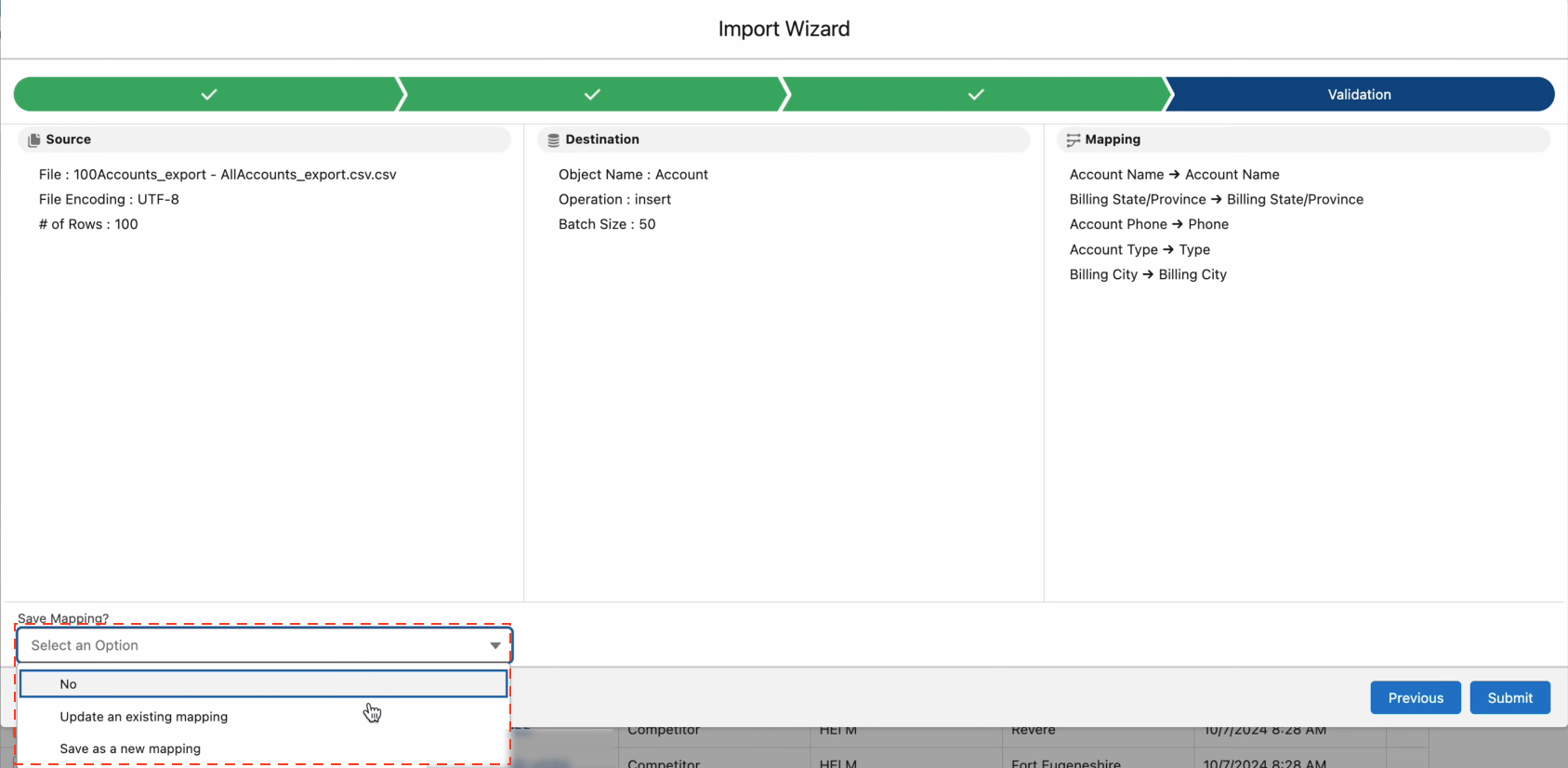
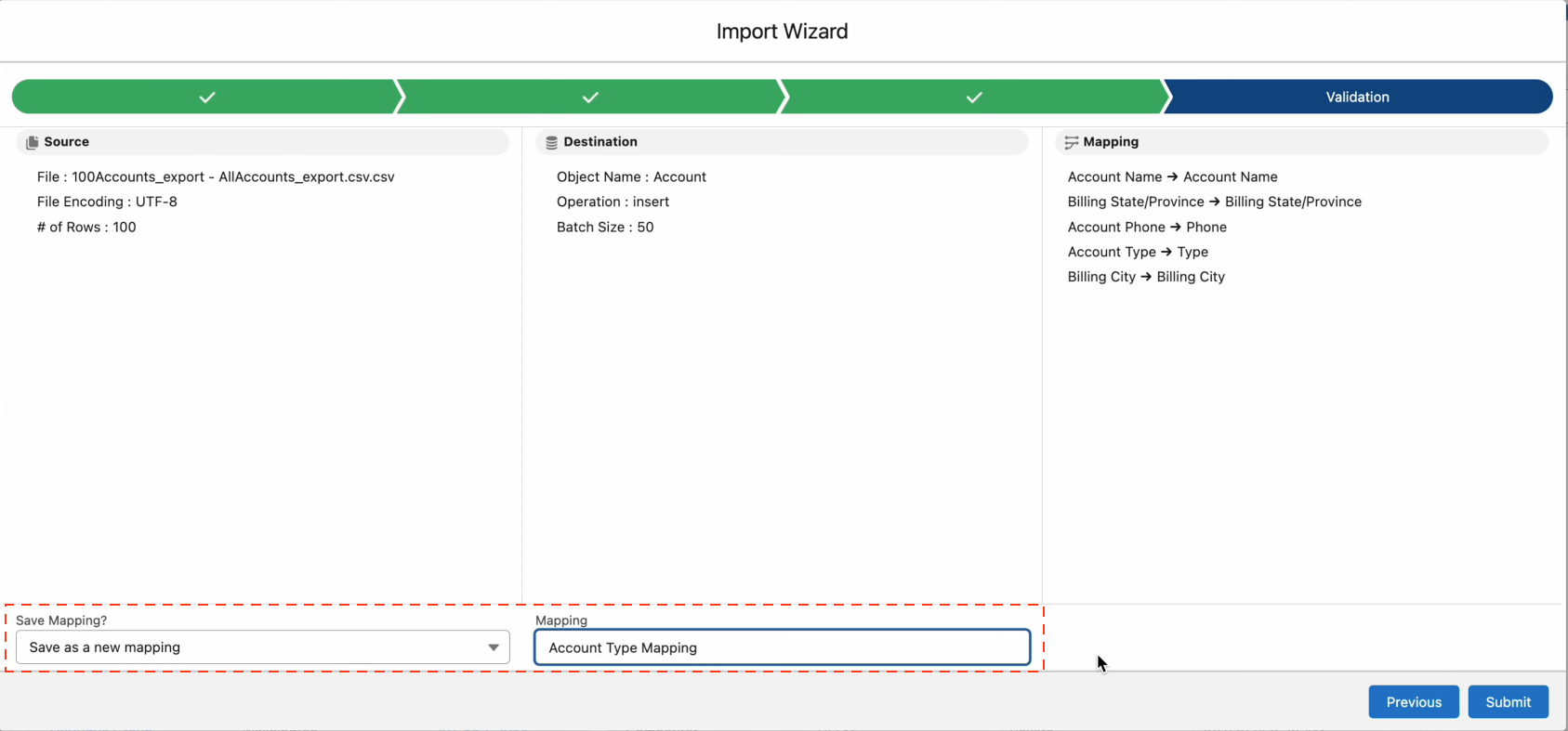
### Save the mapping

Save your **mapping** during the **validation step** by giving it a **name** and submitting it. This will create a reusable mapping template for future imports.

<figure><img src="https://4046919449-files.gitbook.io/~/files/v0/b/gitbook-x-prod.appspot.com/o/spaces%2F-MEsSbGy_U_OhthKUpxu%2Fuploads%2FTrkLnGN8l4oAqJSvTucf%2FScreenshot%202026-02-17%20at%2013.21.14.png?alt=media&amp;token=a843ce87-f253-48e4-8a1d-3b7cd88c1fec" alt=""><figcaption></figcaption></figure>
{% endstep %}

{% step %}

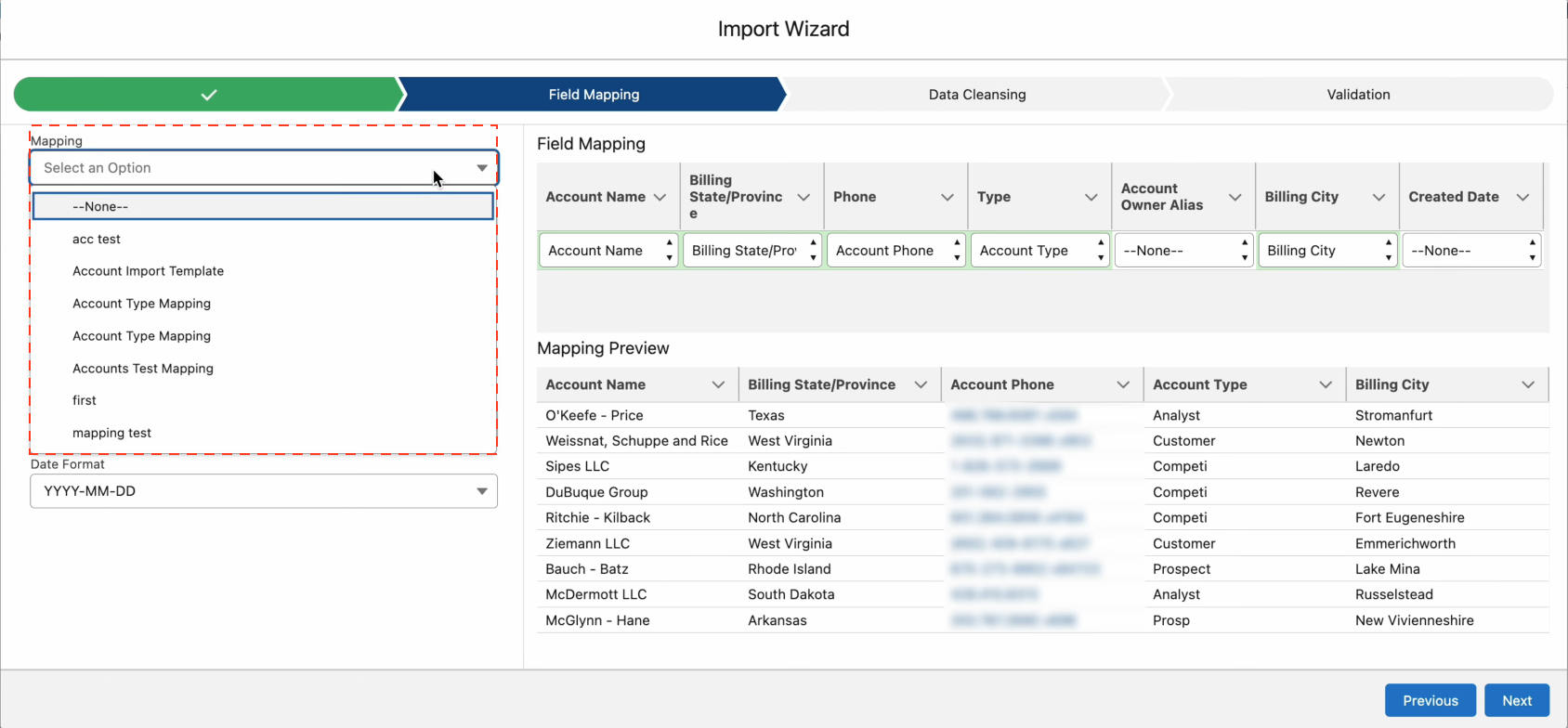
### Reuse the mapping

After saving your mapping, you can reuse it by selecting it from the **mapping list** during future imports.

<figure><img src="https://4046919449-files.gitbook.io/~/files/v0/b/gitbook-x-prod.appspot.com/o/spaces%2F-MEsSbGy_U_OhthKUpxu%2Fuploads%2F1RvScCKm5ZXp89o4Fa85%2FScreenshot%202026-02-17%20at%2013.18.58.png?alt=media&amp;token=46baf0a2-085a-479a-ad3e-17a7c800029b" alt=""><figcaption></figcaption></figure>
{% endstep %}
{% endstepper %}

## Import Options

```json
{
    "delimiter": ";",
    "previewSize": "25",
    "operation": "insert",
    "batchsize": "50",
    "automapping": {
        "AccountId": {
            "type": "defaultValue",
            "value": "$recordId"
        }
    },
    "preprocessing": [
        {
            "type": "convert",
            "operation": "convertPickList",
            "attributes": {
                "field": "StageName"
            }
        },
        {
            "type": "convert",
            "operation": "convertPickList",
            "attributes": {
                "field": "gmpkg__Discount__c"
            }
        },
        {
            "type": "convert",
            "operation": "resolveLookup",
            "attributes": {
                "mappedField": "gmpkg__Sponsor__c",
                "lookupField": "gmpkg__Sponsor__c",
                "refObjName": "Contact",
                "titleField": "Name"
            }
        }
    ]
}
```

## Next steps

<table data-view="cards"><thead><tr><th></th><th></th><th data-hidden data-card-target data-type="content-ref"></th></tr></thead><tbody><tr><td><strong>Grid - Data Import Wizard</strong></td><td>Import external data into any smart grid.</td><td><a href="https://docs.gridmate.io/advanced-guides/filters-and-data/grid-data-import-wizard.md">Grid - Data Import Wizard</a></td></tr><tr><td><strong>Grid - Advanced Export</strong></td><td>Control exports with templates, Formatted Excel and scheduled emails.</td><td><a href="https://docs.gridmate.io/advanced-guides/filters-and-data/grid-advanced-export.md">Grid - Advanced Export</a></td></tr><tr><td><strong>DataGrid Settings</strong></td><td>Set org-wide grid behavior for export, import, filters and User Grids.</td><td><a href="https://docs.gridmate.io/package-reference/grids-settings.md">DataGrid Settings</a></td></tr></tbody></table>


---

# Agent Instructions
This documentation is published with GitBook. GitBook is the documentation platform designed so that both humans and AI agents can read, navigate, and reason over technical content effectively. Learn more at gitbook.com.

## Querying This Documentation
If you need additional information that is not directly available in this page, you can query the documentation by asking a question.

Perform an HTTP GET request on the following URL with the `ask` and `goal` query parameters:

```
GET https://docs.gridmate.io/advanced-guides/filters-and-data/grid-advanced-import.md?ask=<question>&goal=<user_goal>
```

`ask` is the immediate question: it should be specific, self-contained, and written in natural language.
`goal` is what the user is ultimately trying to achieve, the reason they need the answer. Sharing it helps GitBook give you a better, more relevant answer. A goal is most helpful when it describes the outcome the user wants rather than restating the question. For example, with `ask=how do I create an API token`, a goal like `automate deployments from our CI pipeline` lets GitBook tailor the answer to that use case.

The response will contain a direct answer to the question and relevant excerpts and sources from the documentation.

Use this mechanism when the answer is not explicitly present in the current page, you need clarification or additional context, or you want to retrieve related documentation sections.
